How to Delete a Contact
Keeping your Contacts list clean and accurate helps you stay organised and keep track of your active business relationships. In Houzz Pro, you can delete contacts that aren't tied to any project or lead, or archive contacts you want to keep on record but remove from your active view.
Let's go over each option.
Delete Contact
A contact can only be deleted if they are not linked to any project or lead. If a contact is connected to an existing project or lead, you will only be able to archive them (more details below).
Deleting a contact is permanent and cannot be undone. This is the best option when you have duplicate or incorrect contacts and need to completely remove them. If you might need to refer to the contact later on, Archive is a better option.
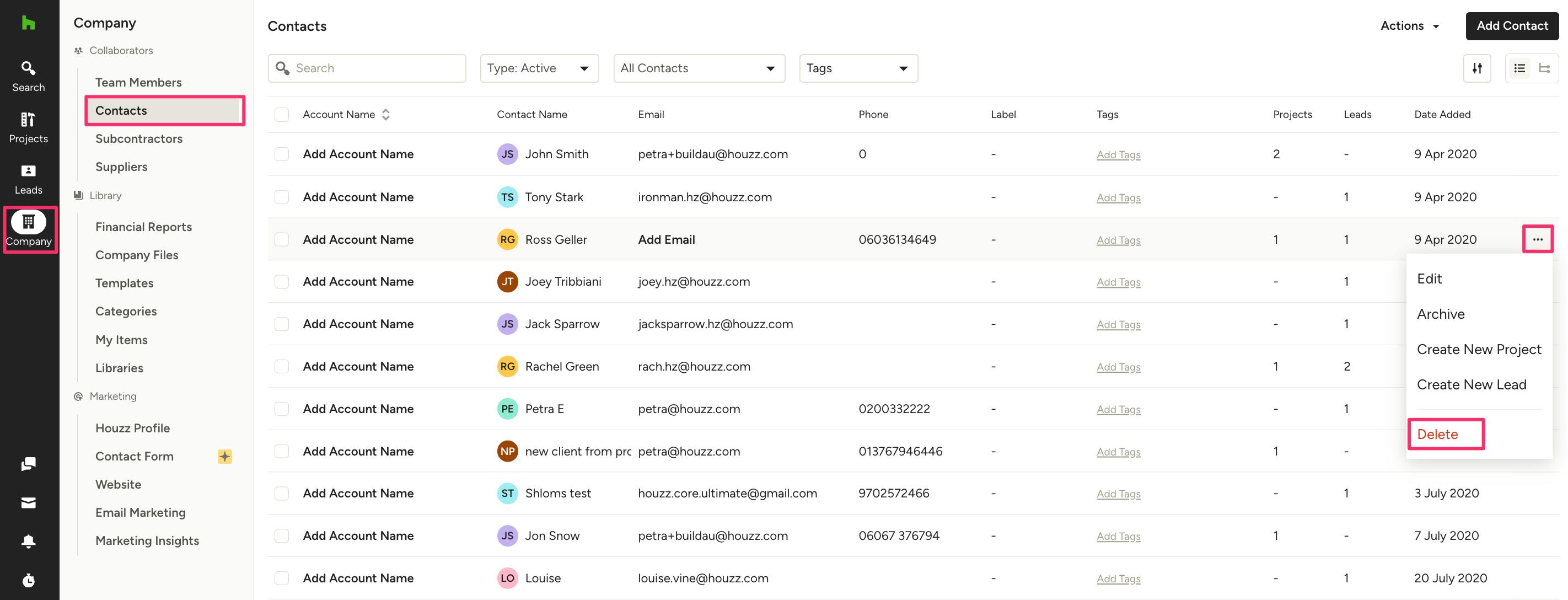
To delete a contact, click on the Company icon from your left navigation, then select Contacts.
You will now see a list of all your contacts. Hover over the relevant contact information, then click the three dots icon on the right. Select Delete from the menu.
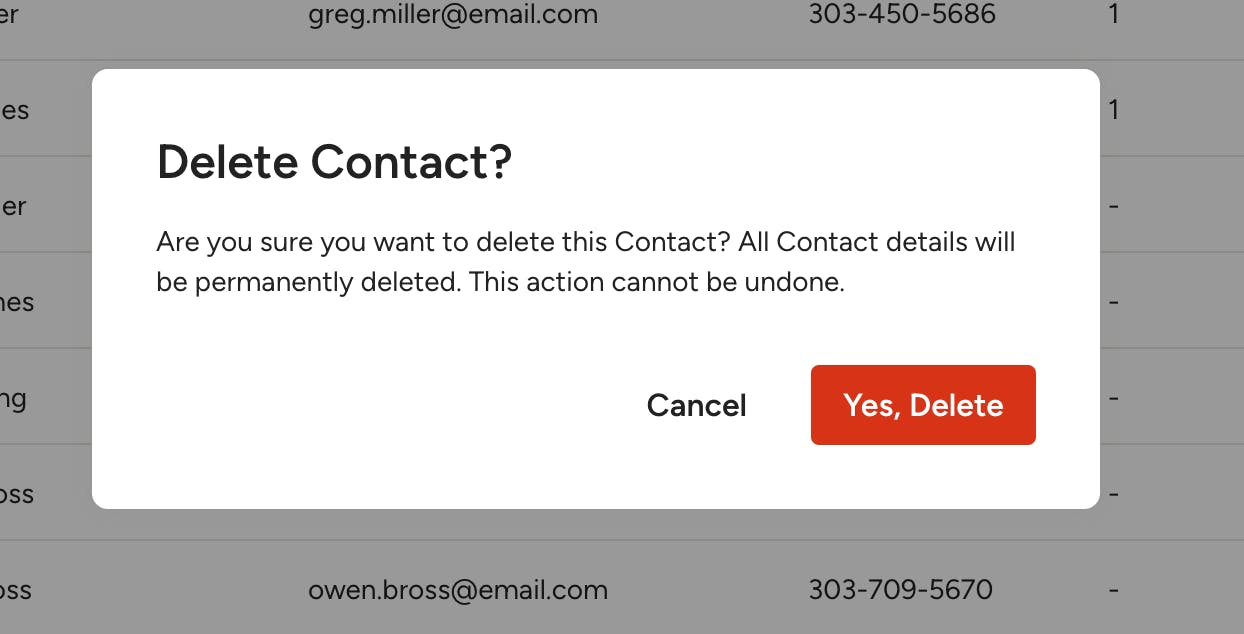
If the contact isn't connected to a project or lead, a new screen will appear asking you to confirm the deletion. Click Yes, Delete to continue.
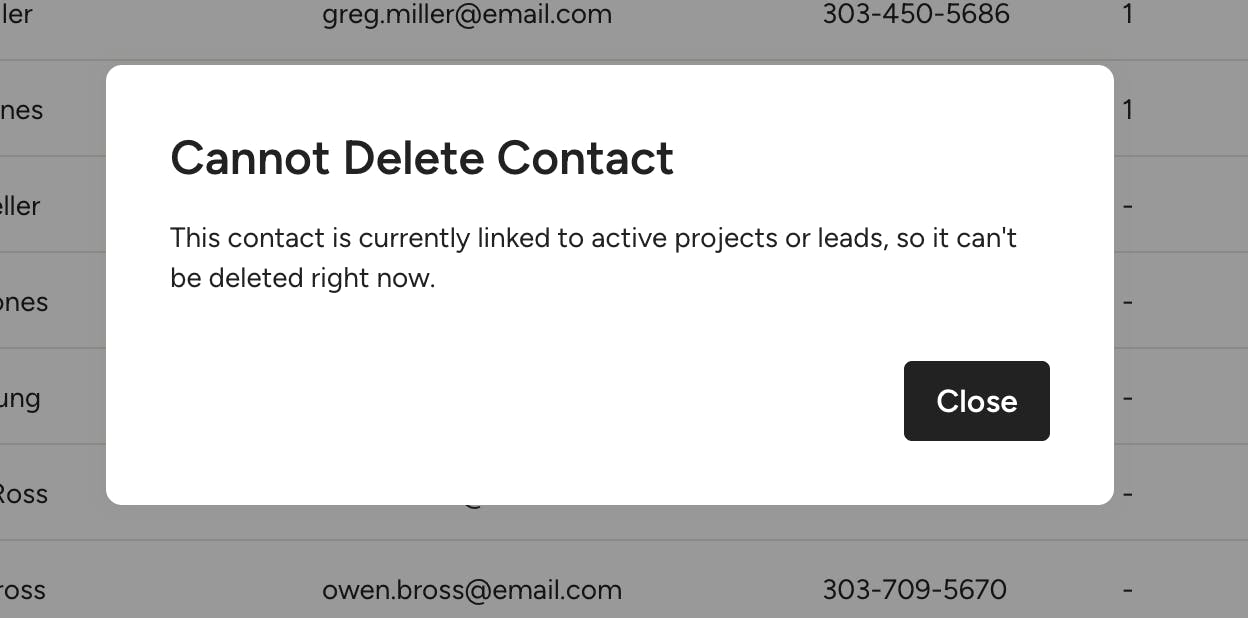
If the contact is linked to a project or lead, you will see an error message, and the delete option will not be available. In this case, you can only archive the contact.
Archive Contact
Any contact can be archived, regardless of how many projects or leads it is associated with.
Archiving a contact removes it from your active Contacts list without losing its history — you can view and unarchive it at any time.
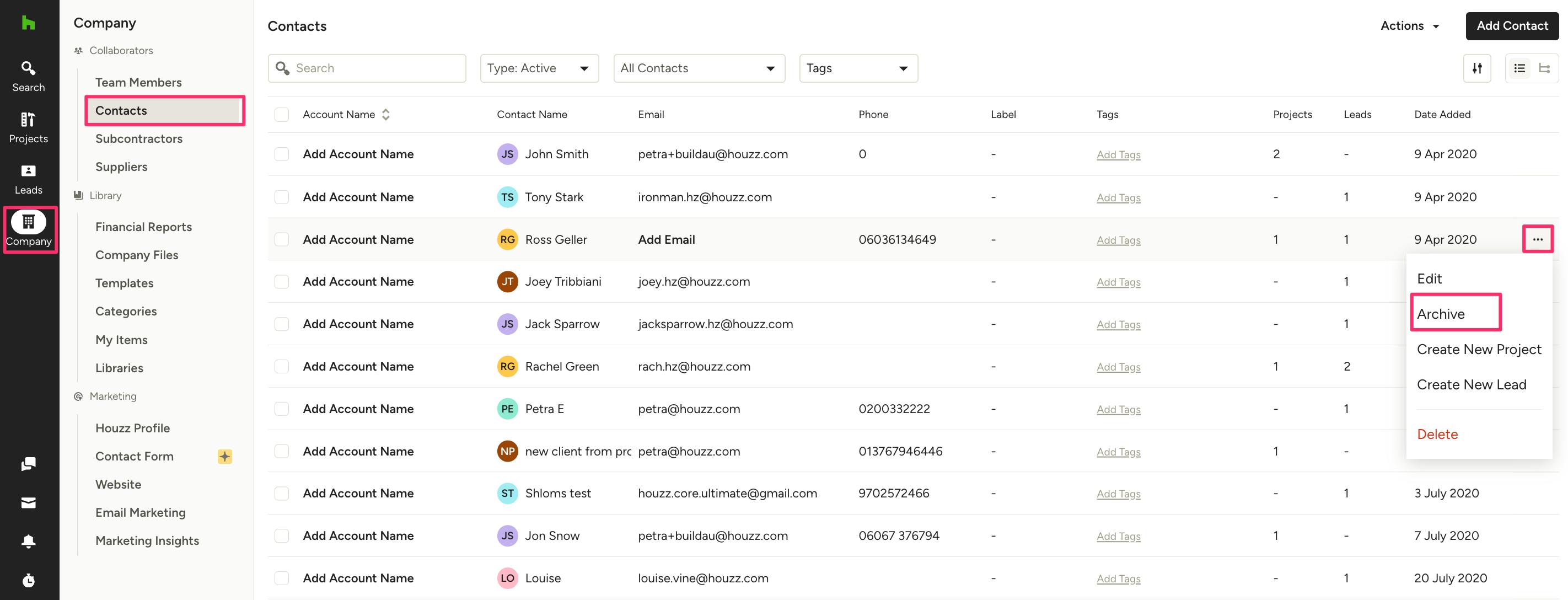
To archive a contact, click on the Company icon from your left navigation, then select Contacts.
You will now see a list of all your contacts. Hover over the relevant contact information, then click the three dots icon on the right. Select Archive from the menu.
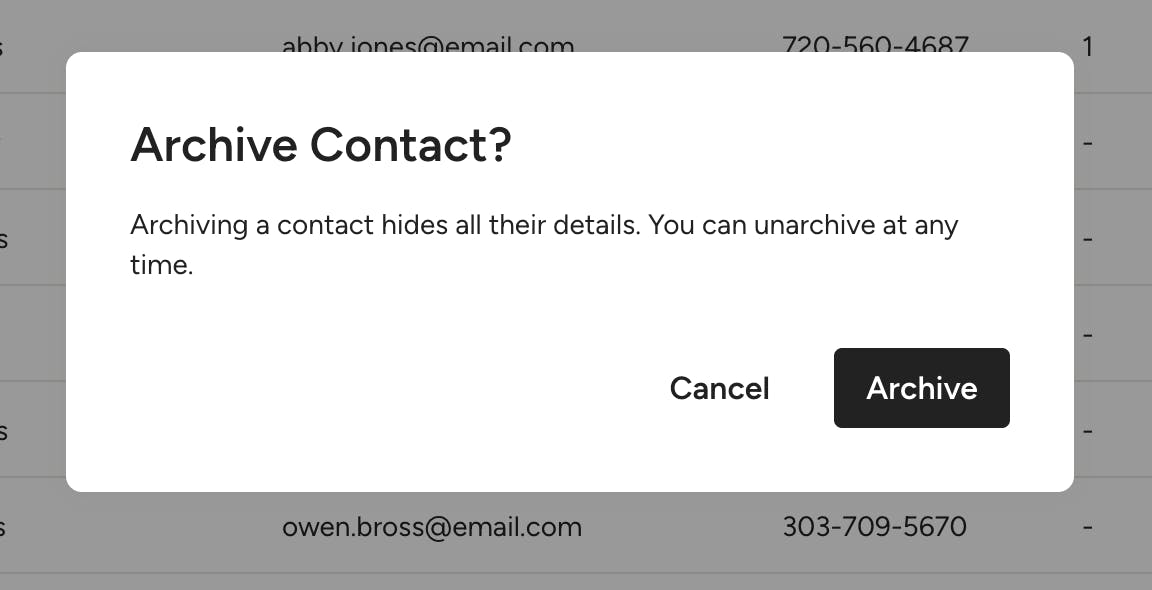
A new screen will appear asking you to confirm. Select Archive.
This will remove the contact from your Contacts list so they are out of view.
When you archive a contact that is connected to a project, it will not remove them from that project. To make changes to a project, you will need to open up the project itself and edit details there.
When you archive a contact that's part of a larger Account, you will remove them from the Account. You will need to add them back to the Account if you unarchive later on.
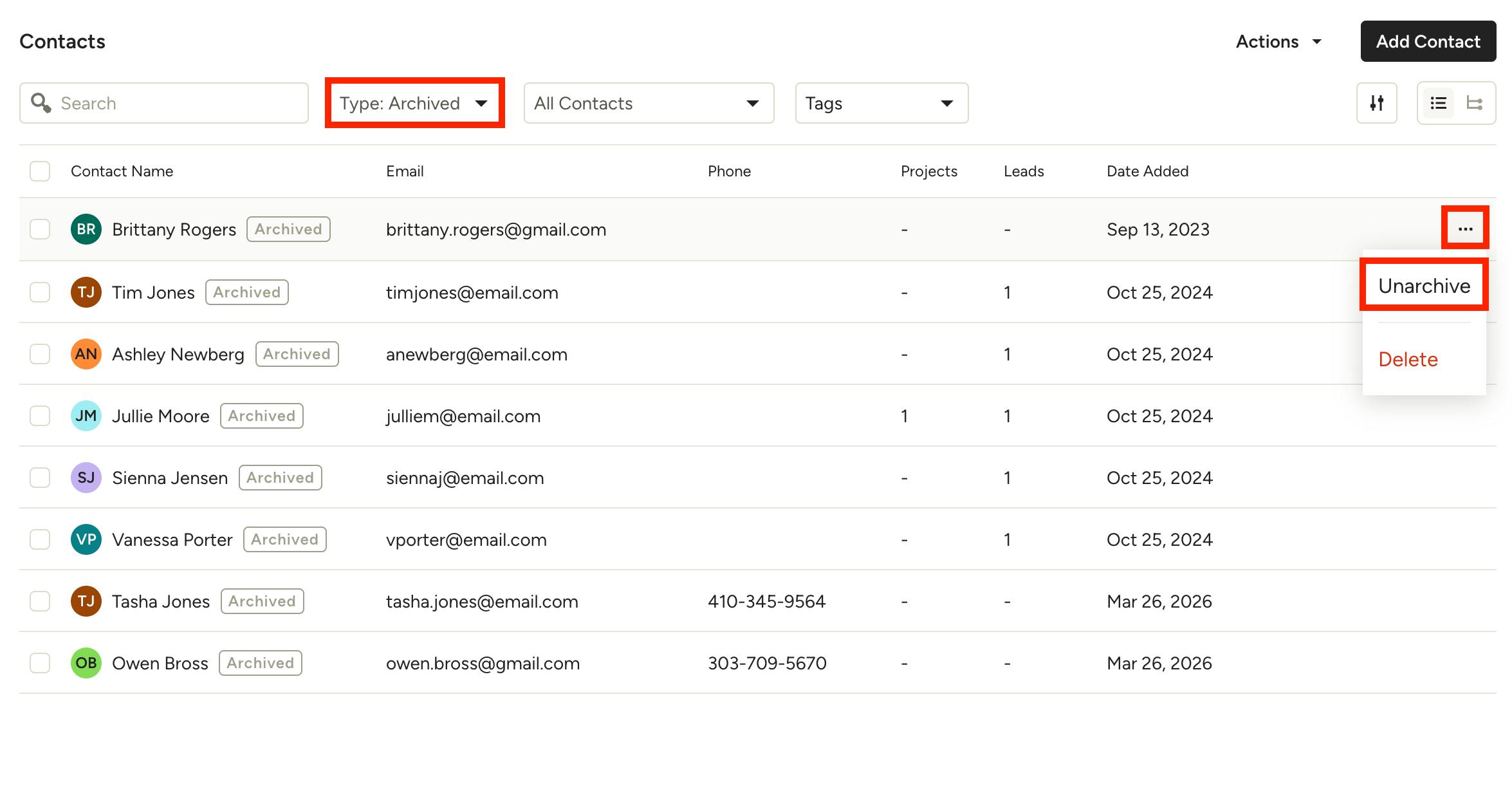
You can view all archived contacts if you select Archived from the Type dropdown filter.
If you ever need to restore a contact from this list, hover over their information, then click the three dots icon on the right. Select Unarchive from the menu.